 CarTheme
Photo Widgets for CarPlay
Nothing personalizes a dashboard faster than a photo of the thing you love — your actual car, your dog riding shotgun, your kids, a favorite road-trip shot. A photo widget makes the CarPlay screen unmistakably yours in a way no stock theme ever could.
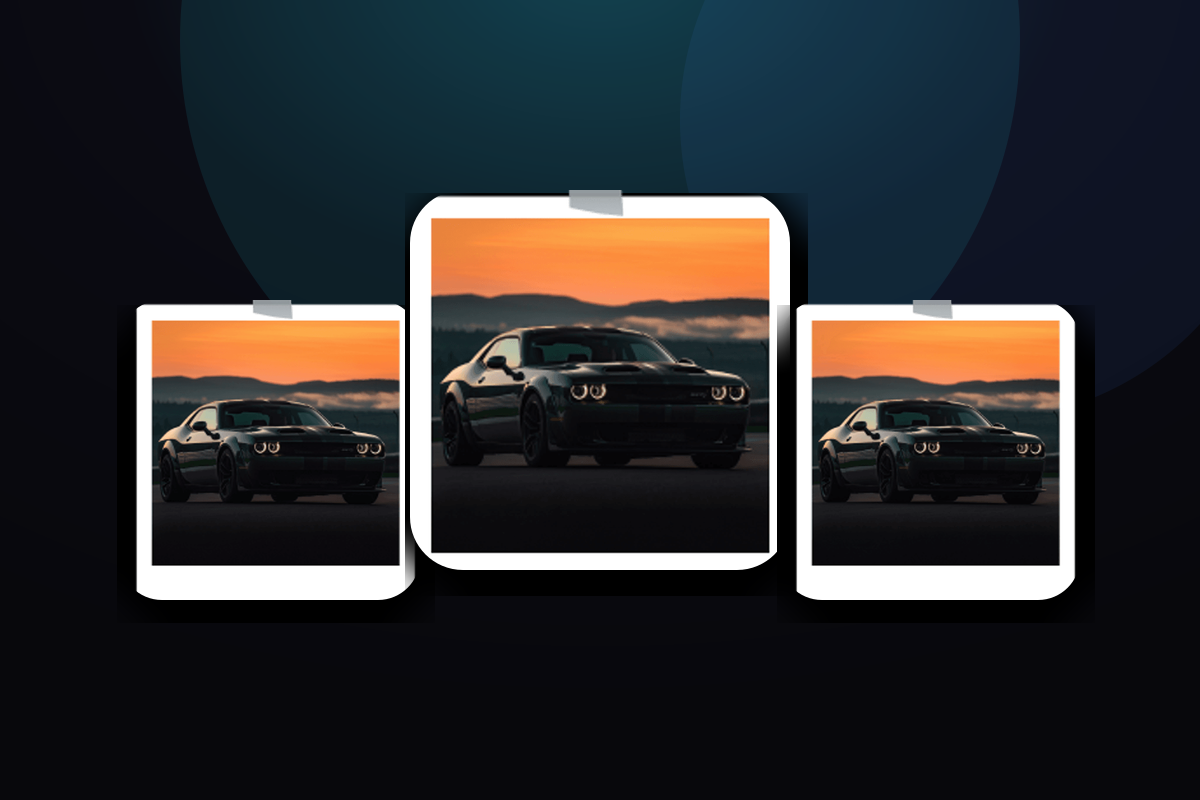
CarTheme makes photo widgets effortless: import a picture, and the built-in background remover can cut your car (or your dog) cleanly out of its surroundings for a crisp, floating look. Frame it, round the corners, add a subtle shadow, and drop it into your layout. Rotate through an album, or pin one hero shot.
Photo widget styles
A few looks you can create — or start from and make your own.
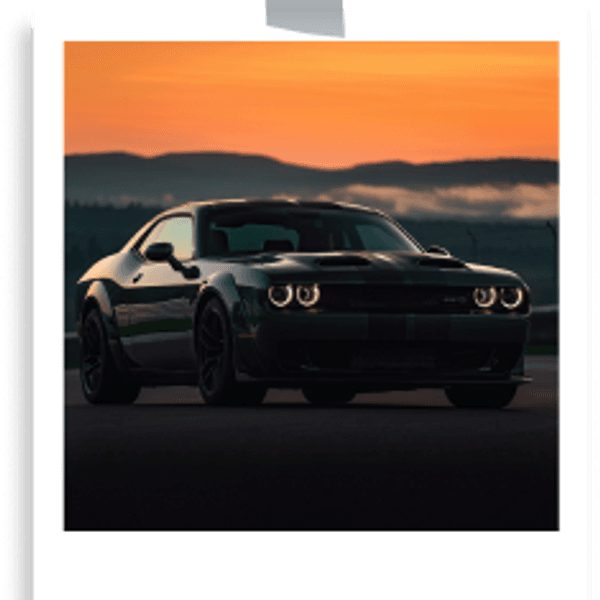



Auto background removal
Cut your car or subject cleanly out of any photo — no editing app required.
Photo albums
Rotate through a set of images, or lock in a single favorite.
Frames & shadows
Round corners, borders and soft shadows for a polished, floating look.
Any subject
Your car, pets, family, travel shots — whatever makes the dashboard feel like home.
How to add photo widgets to CarPlay
- Design your photo widget in CarTheme.
- On your iPhone, open Settings → General → CarPlay and select your car.
- Tap Widgets → Add Widget and choose your CarTheme widget.
- Swipe right on the CarPlay screen to see it live.
Photo widgets — FAQ
How does background removal work?
Import a photo and CarTheme detects the main subject and removes the background automatically, so your car or pet looks cleanly cut out.
What image formats can I use?
PNG (including transparent), JPG and HEIC all work. For a pre-cut transparent subject, use a PNG.
Can I show a rotating album on CarPlay?
Yes — set up a photo album and the widget cycles through your chosen images on the dashboard.
Related widgets
Ready to upgrade your dashboard?
Download CarTheme and set up your first widget, theme and startup sound in under two minutes.
Download on theApp Store