 CarTheme
Clock Widgets for CarPlay
A clock is the one widget that never feels out of place on a dashboard. Whether you want a big, bold digital readout you can see from the passenger seat or a refined analog face that makes the whole cabin feel more premium, the right clock ties a CarPlay screen together.
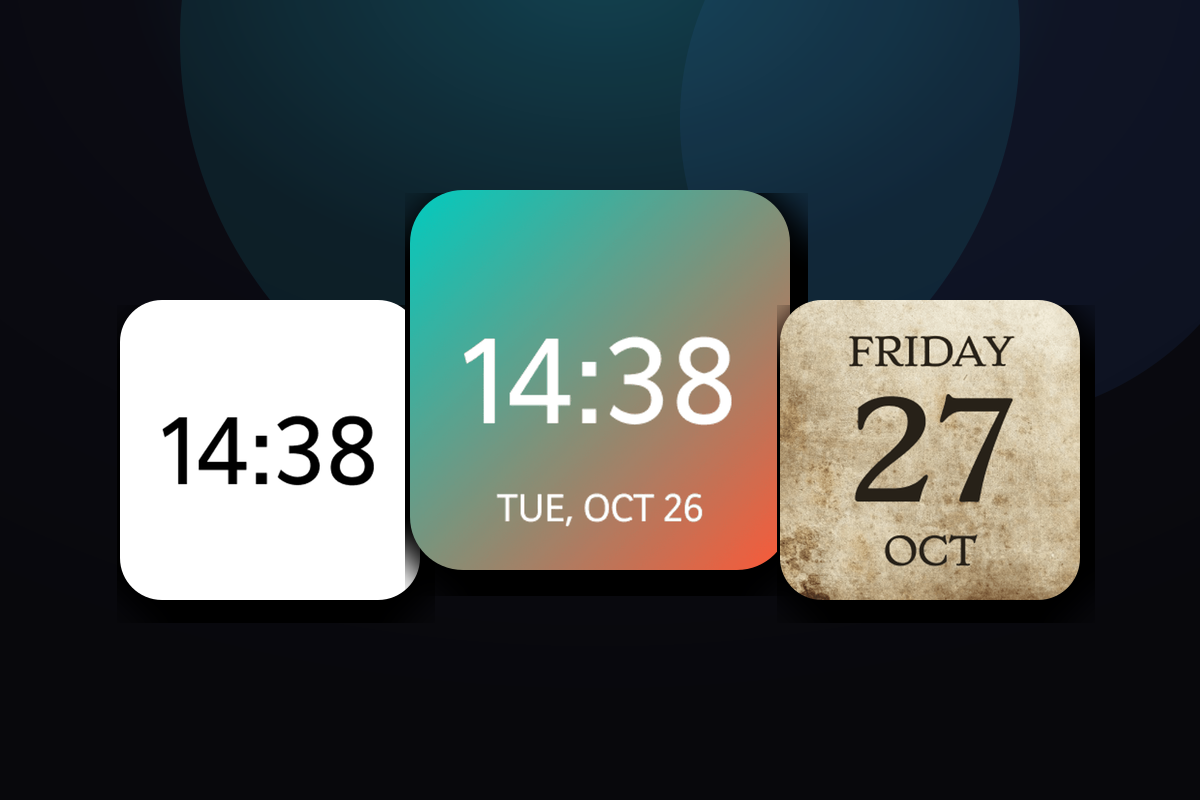
CarTheme ships a range of clock styles — minimalist digital, classic analog, flip-clock retro, and dual time zones for people who live between two cities. Every face is fully customizable: change the numerals, hands, accent color and background so it matches your theme and your car’s interior lighting.
Clock widget styles
A few looks you can create — or start from and make your own.
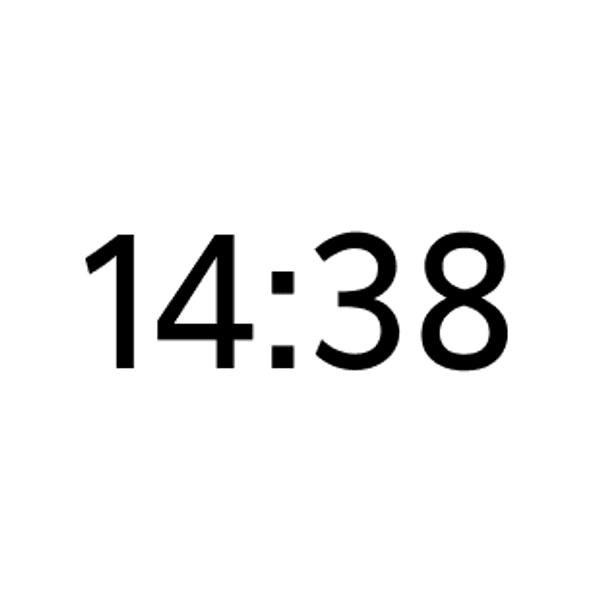
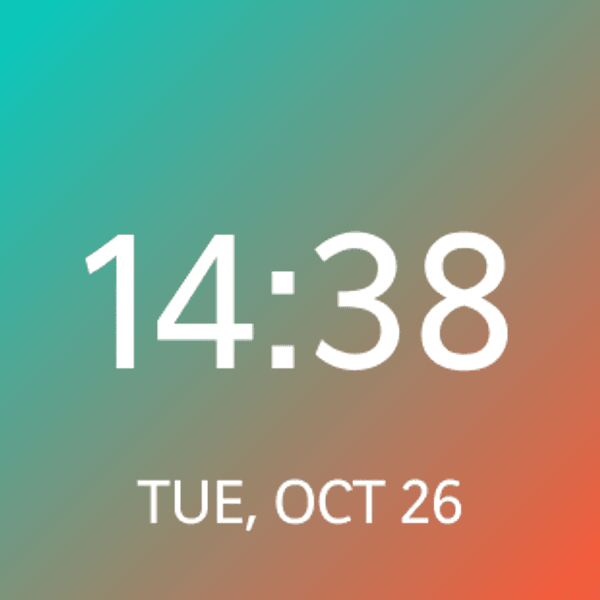
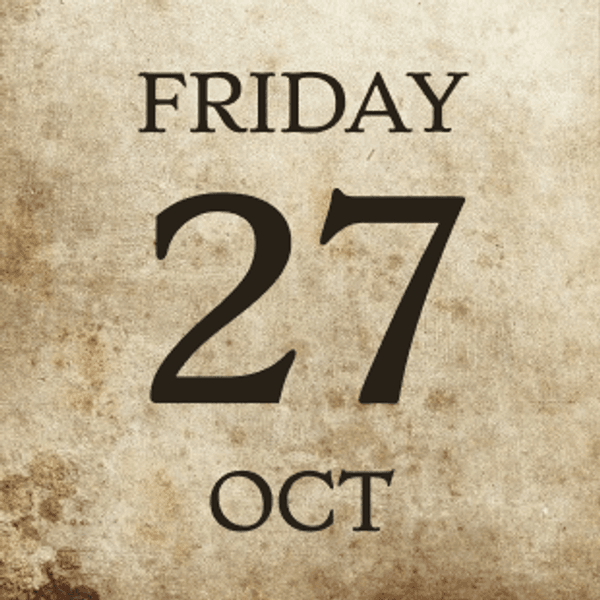
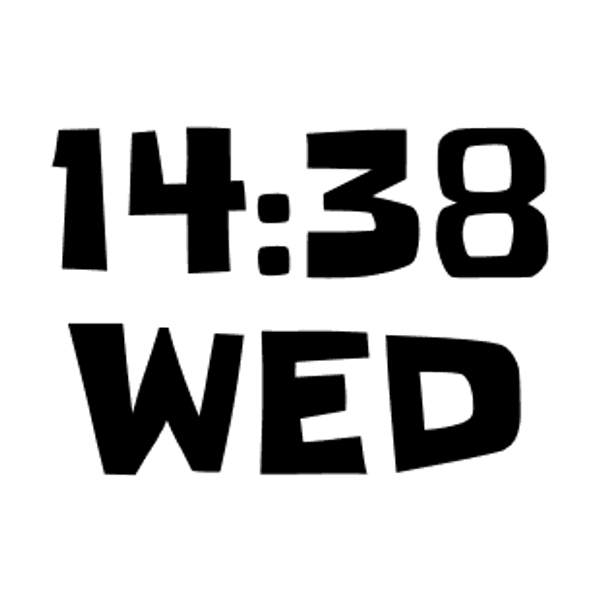

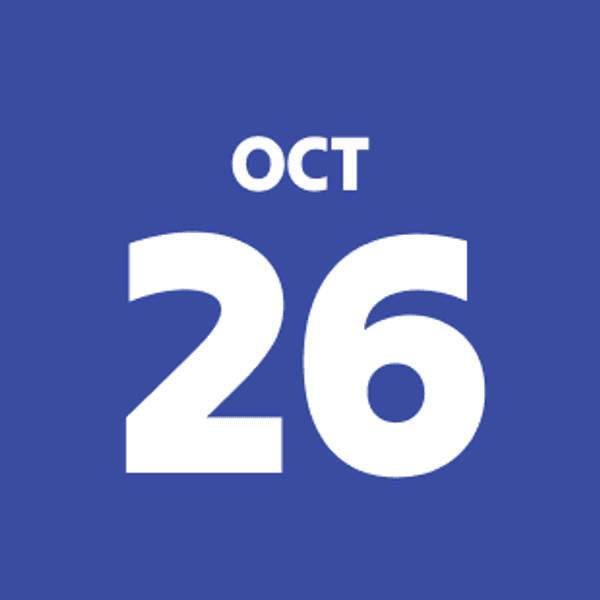
Analog & digital
Switch between clean digital time and classic analog faces with a tap.
Dual time zone
Show home and destination time side by side — perfect for frequent travelers.
Retro flip clock
A nostalgic split-flap style for drivers who like a bit of character.
Night-friendly
High-contrast variants tuned for glare-free glancing after dark.
How to add clock widgets to CarPlay
- Design your clock widget in CarTheme.
- On your iPhone, open Settings → General → CarPlay and select your car.
- Tap Widgets → Add Widget and choose your CarTheme widget.
- Swipe right on the CarPlay screen to see it live.
Clock widgets — FAQ
Can I have a 24-hour clock?
Yes. Each clock widget supports both 12-hour and 24-hour formats, independent of your phone’s setting if you prefer.
Do analog clocks update smoothly?
Clock widgets refresh on the CarPlay system interval. For a live-ticking second hand, use the widget on your iPhone home screen where refresh is more frequent.
Can I match the clock to my car’s color?
Absolutely — set any accent and background color so the clock matches your ambient lighting or gauge cluster.
Related widgets
Ready to upgrade your dashboard?
Download CarTheme and set up your first widget, theme and startup sound in under two minutes.
Download on theApp Store