 CarTheme
How to Add Widgets to CarPlay in iOS 26
Updated
iOS 26 brought the single biggest change to CarPlay since its launch: widgets. Your car’s screen can now show live, glanceable information — calendar, battery, weather, music — arranged the way you want it. Here’s how to set them up, plus how to go beyond Apple’s stock designs.
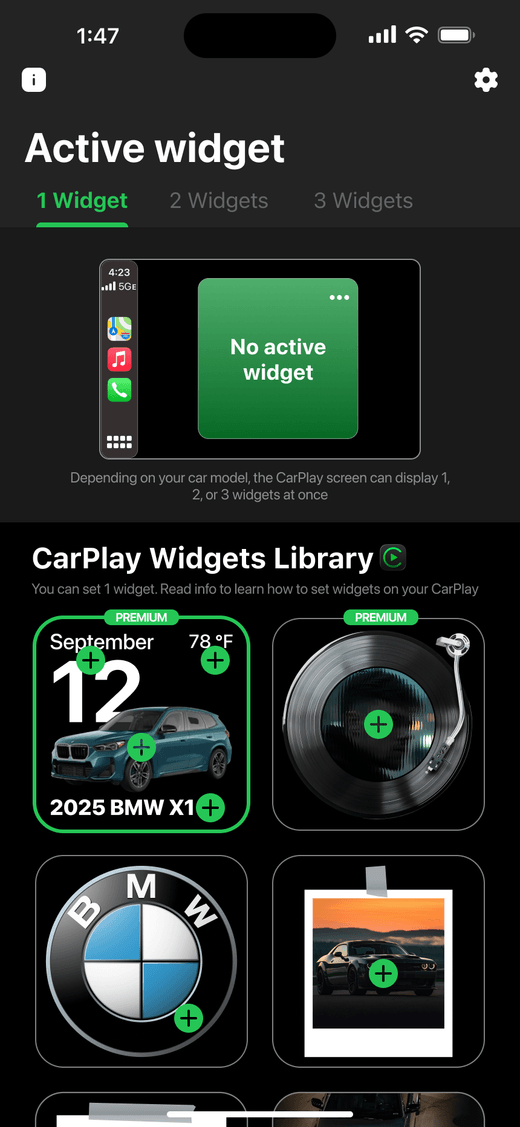
Step by step: add a widget with CarTheme
Widget setup happens on your iPhone, not on the car screen. These are the exact taps — from the CarTheme app.
1. Open Settings and tap CarPlay (Settings → General → CarPlay).
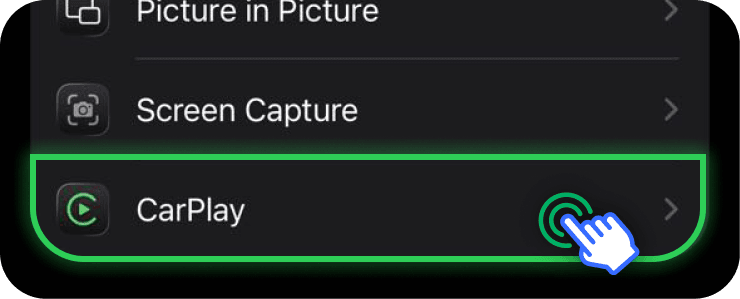
2. Select your car from the list.
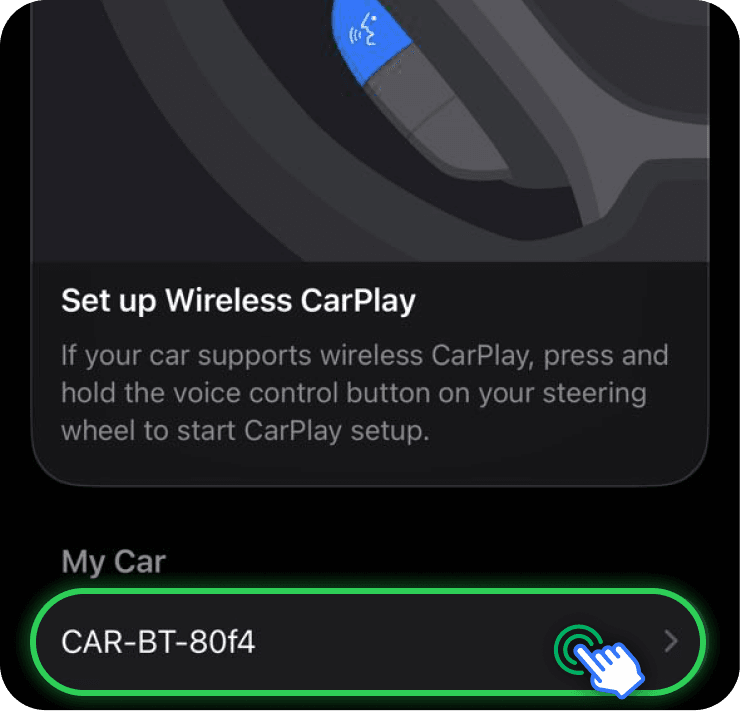
3. Open Customize and tap Widgets.
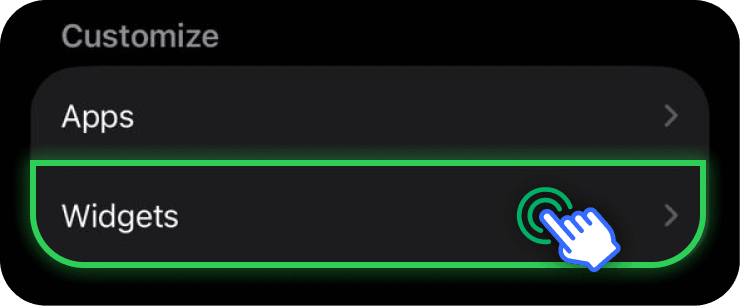
4. Tap Add Widget.
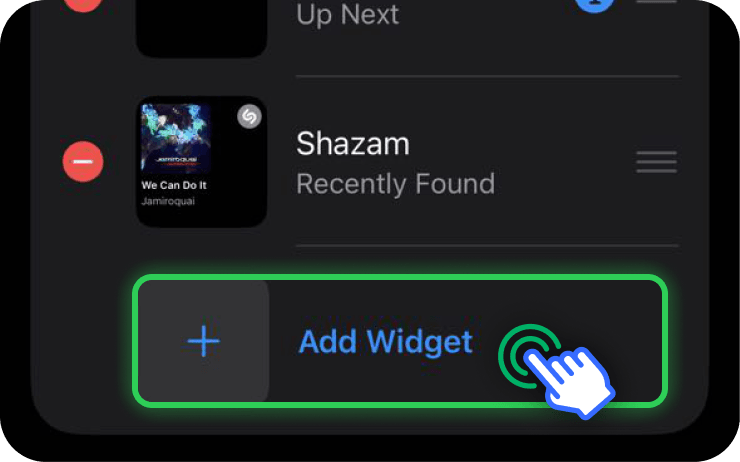
5. Choose CarTheme from the list of widget providers.
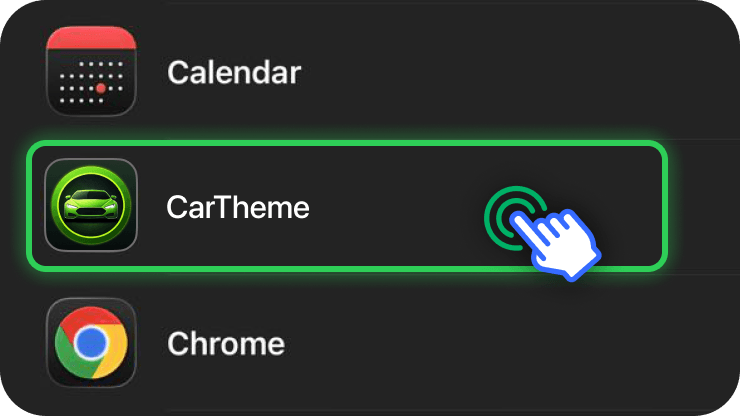
6. Add the CarTheme Widget — the card shows the quick recap.
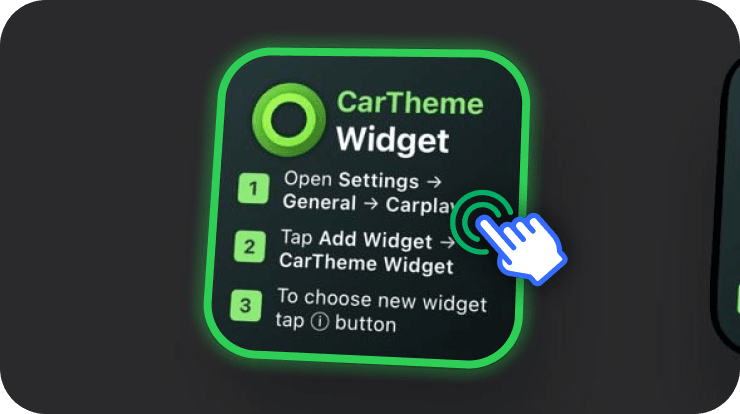
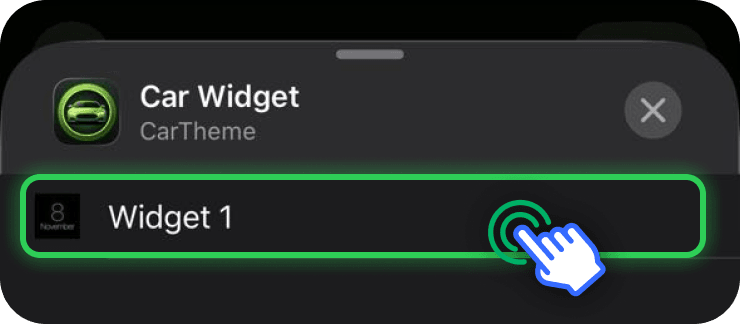
7. Tap the ⓘ button next to CarTheme to pick which design shows.
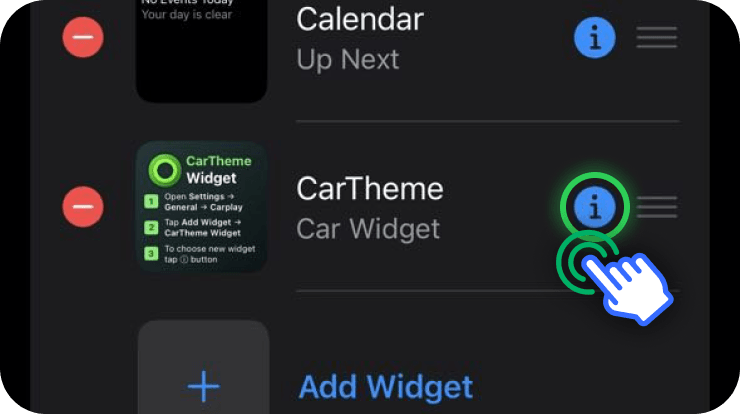
8. Select your widget (Widget 1, Widget 2…) and you’re done.
On your car’s display, swipe right from the main CarPlay screen to reach the widgets page. iOS 26 arranges widgets in vertical stacks — up to five widgets per stack, and you can flip through each stack like pages.
Rearranging and removing widgets
Back in Settings → General → CarPlay → your car → Widgets:
- Drag the handle (the horizontal lines) next to a widget to reorder it.
- Tap the red minus button to remove one.
- The order in Settings matches the top-to-bottom stack order on the car screen.
The limits of stock widgets — and how to break them
Apple’s built-in widgets are functional but rigid: fixed colors, fixed layouts, no personality. If you want a dashboard that actually looks like yours, that’s what CarTheme is for:
- Design your own widgets — choose colors, backgrounds, icon styles and spacing.
- Match your car’s interior — build a layout that echoes your ambient lighting or gauge cluster.
- Themed presets — one-tap looks from minimal dark to full BMW-style cockpit.
- Use them everywhere — the same widgets work on your iPhone home screen.
Design a widget in the CarTheme editor, add it through the same Settings flow above, and it appears in your CarPlay stacks alongside (or instead of) Apple’s stock ones.
Widget ideas to get started
- Driver’s essentials: ETA + calendar + battery in one stack.
- Road-trip stack: weather, next stop, now playing.
- Minimal look: a single large clock widget with a dark theme — clean, no clutter.
Troubleshooting
Widgets don’t appear in the car. Make sure the car is selected under Settings → General → CarPlay and that you added widgets for that specific car — widget layouts are per-vehicle.
The widgets page is missing. Your head unit must support the iOS 26 CarPlay layout. If the car screen is very small or very old, stacks may be limited.
A third-party widget isn’t listed. The app that provides it must be installed and, for some widgets, opened at least once after installation.
Want the full picture? See our guide to customizing your entire CarPlay dashboard, then finish the setup with a custom startup sound.